Ranking scale
This is a common question from people who want a list of features put in order of priority. Google Forms has no ranking question. You can ask people to write the order in a short answer, but then you have to read each answer and count by hand. In a plain grid, people can also give two choices the same rank. With Formfacade, you can create it with a multiple choice grid in the form's "Edit" tab, so your users give each choice its own rank. Even better, you can sync the ranks to Google Sheets and add them up there.
Let's start. Create your form and follow the steps below.
Ranking question allows users to rank a list of choices in the order of importance or priority. You can add a multiple choice grid question and enable both Require a response in each row & Limit to one response per column option to create a ranking question. Here's an example below.
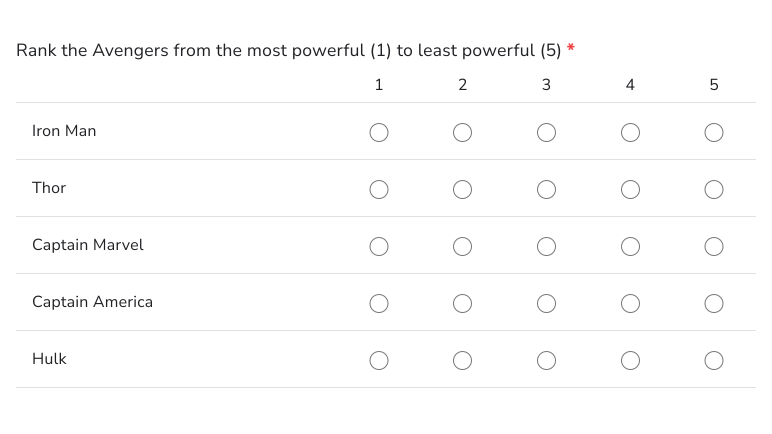
How to create a ranking question?
- On the page that opens, name your form, click Build form and click Proceed. It can take about a minute.
- You will land on the form's "Preview" tab.
- Click on "Edit" tab

If you want your users to rank a list of choices in the order of importance or priority, you can use the multiple choice grid question type to create a ranking question. For example, you can create a ranking question with a list of features and ask your users to rank them so that you can prioritize what's important.
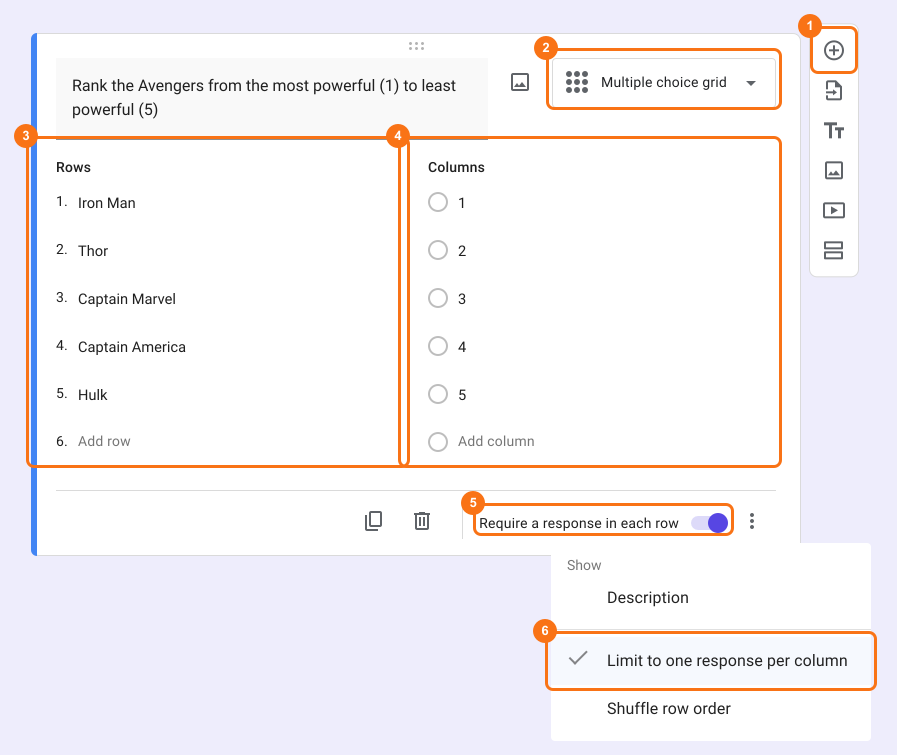
- Click on the + icon (Add field) in the toolbar on the right and enter your question
- Select Multiple choice grid in the question type list
- Add choices to be ranked in Rows
- Add ranking scale as answer choices in Columns
- Enable Requires a response in each row toggle button
- This option is only in Google Forms. Click on the form's title, click on the ⚙️ icon, select the "Advanced" tab and click Launch next to "Edit this form with Google Forms". Google Forms will open in a new tab
- In Google Forms, click on the ⋮ icon on the question and select Limit to one response per column
- Open the form's "Edit" tab again, so that your form picks up the change. If you do not see it, wait a few seconds and reload the page.
Summary
If you want users to rank a list of choices, Google Forms does not have a ranking question. With a multiple choice grid in Formfacade, you enable Requires a response in each row, then Limit to one response per column in Google Forms and each choice gets its own rank. Create your form and complete the steps above.
Last updated: